Documentation Index
Fetch the complete documentation index at: https://docs.puppeteerai.com/llms.txt
Use this file to discover all available pages before exploring further.
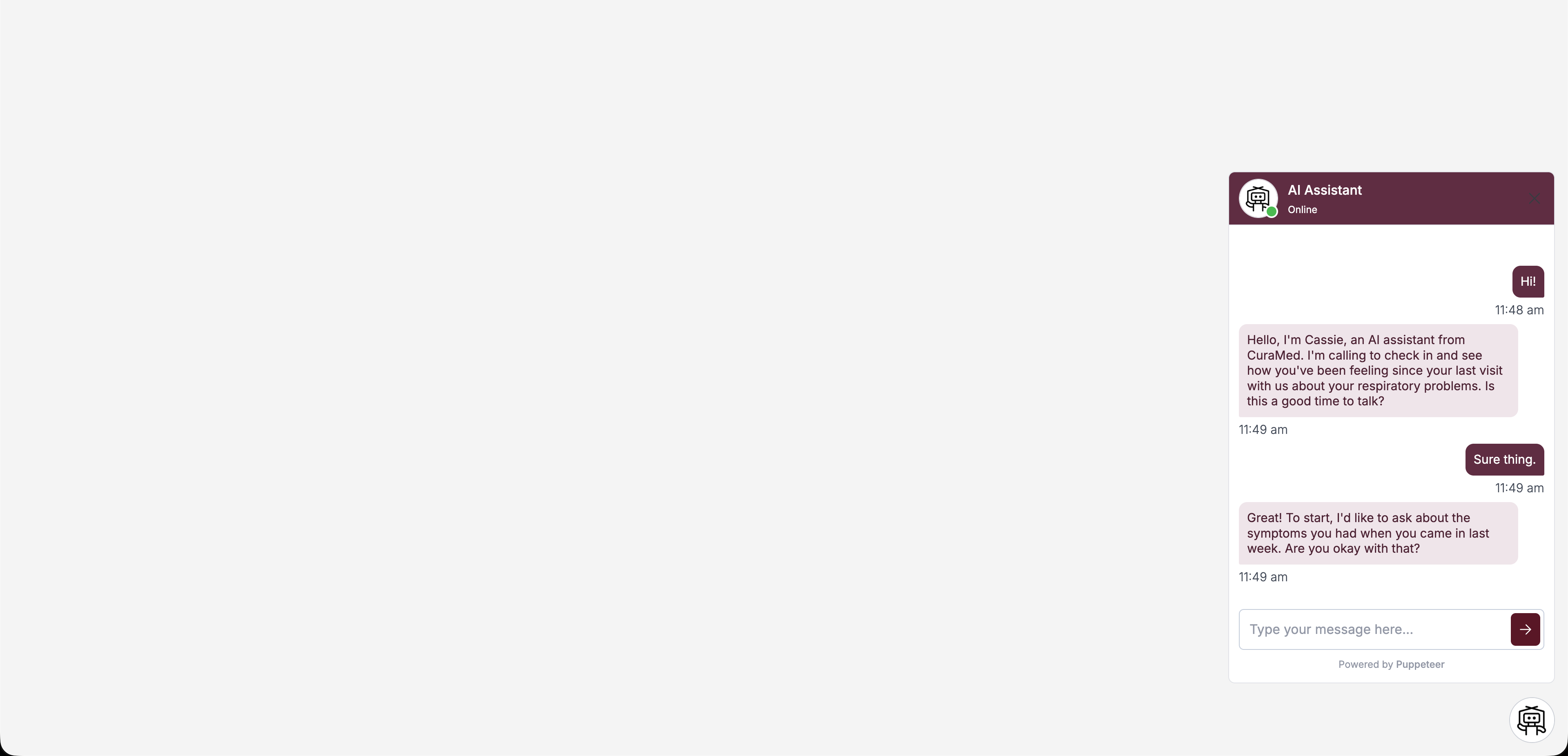
The Puppeteer widget is a floating bubble that sits in the corner of your website. When clicked, it expands into a full chat window where users can interact with your agent.
Under the hood, the widget and the chat embed use the same chat interface — the only difference is presentation. The widget wraps it in a collapsible bubble, while the embed renders it inline in a container you control.
Installation
Add this script tag before the closing </body> tag on every page where you want the widget to appear:
<script async
src="https://dashboard.puppeteerai.com/scripts/chat-loader.js"
data-project-id="YOUR_PROJECT_ID"
data-base-url="https://dashboard.puppeteerai.com">
</script>
That’s it. The widget will appear as a small bubble in the bottom-right corner of the page.
Configuration
Customize the widget’s appearance and behavior with data attributes on the script tag.
Position
| Attribute | Default | Description |
|---|
data-widget-position | "right" | Side of the screen: "left" or "right". |
data-bottom-offset | "1rem" | Distance from the bottom of the viewport. |
Theming
| Attribute | Description |
|---|
data-header-bg-color | Header background color (hex, e.g. #F6F7F9). |
data-header-text-color | Header text color. |
data-header-bot-name | Display name shown in the header. |
data-agent-image | URL for the bot’s avatar image. |
data-bot-bubble-bg-color | Background color of bot message bubbles. |
data-bot-bubble-text-color | Text color of bot message bubbles. |
data-user-bubble-bg-color | Background color of user message bubbles. |
data-user-bubble-text-color | Text color of user message bubbles. |
Data
| Attribute | Description |
|---|
data-token | Pre-generated access token for the thread. |
data-json-input | JSON string with initial data to send to the thread on creation. |
data-show-audio-waveform | When “true”, shows an animated audio waveform during web calls instead of the live transcript. |
Full example
<script async
src="https://dashboard.puppeteerai.com/scripts/chat-loader.js"
data-project-id="YOUR_PROJECT_ID"
data-base-url="https://dashboard.puppeteerai.com"
data-widget-position="right"
data-bottom-offset="2rem"
data-header-bg-color="#712F4A"
data-header-text-color="#FFFFFF"
data-header-bot-name="Care Assistant"
data-bot-bubble-bg-color="#E5E7EB"
data-bot-bubble-text-color="#000000"
data-user-bubble-bg-color="#712F4A"
data-user-bubble-text-color="#FFFFFF">
</script>
Opening a specific thread
By default, the widget creates a new thread for each session. To open an existing thread instead, generate a JWT token for that thread via the API and pass it using data-token:
<script async
src="https://dashboard.puppeteerai.com/scripts/chat-loader.js"
data-project-id="YOUR_PROJECT_ID"
data-base-url="https://dashboard.puppeteerai.com"
data-token="eyJhbGciOiJIUzI1...">
</script>
See Authentication for how to generate a JWT token scoped to a thread.
JavaScript API
The widget exposes a global window.PuppeteerChat object that you can use to control it programmatically.
window.PuppeteerChat.open();
Send a message
window.PuppeteerChat.sendMessage("I'd like to schedule an appointment");
This sends the message as if the user typed it, triggering the agent’s response.
Dashboard setup
You can also configure the widget visually from the Puppeteer dashboard under your project’s Widget Setup page. Changes made there will apply automatically — no code changes needed.