> ## Documentation Index
> Fetch the complete documentation index at: https://docs.puppeteerai.com/llms.txt
> Use this file to discover all available pages before exploring further.
# Chat Embed
> Embed the full chat interface into your website via an iFrame
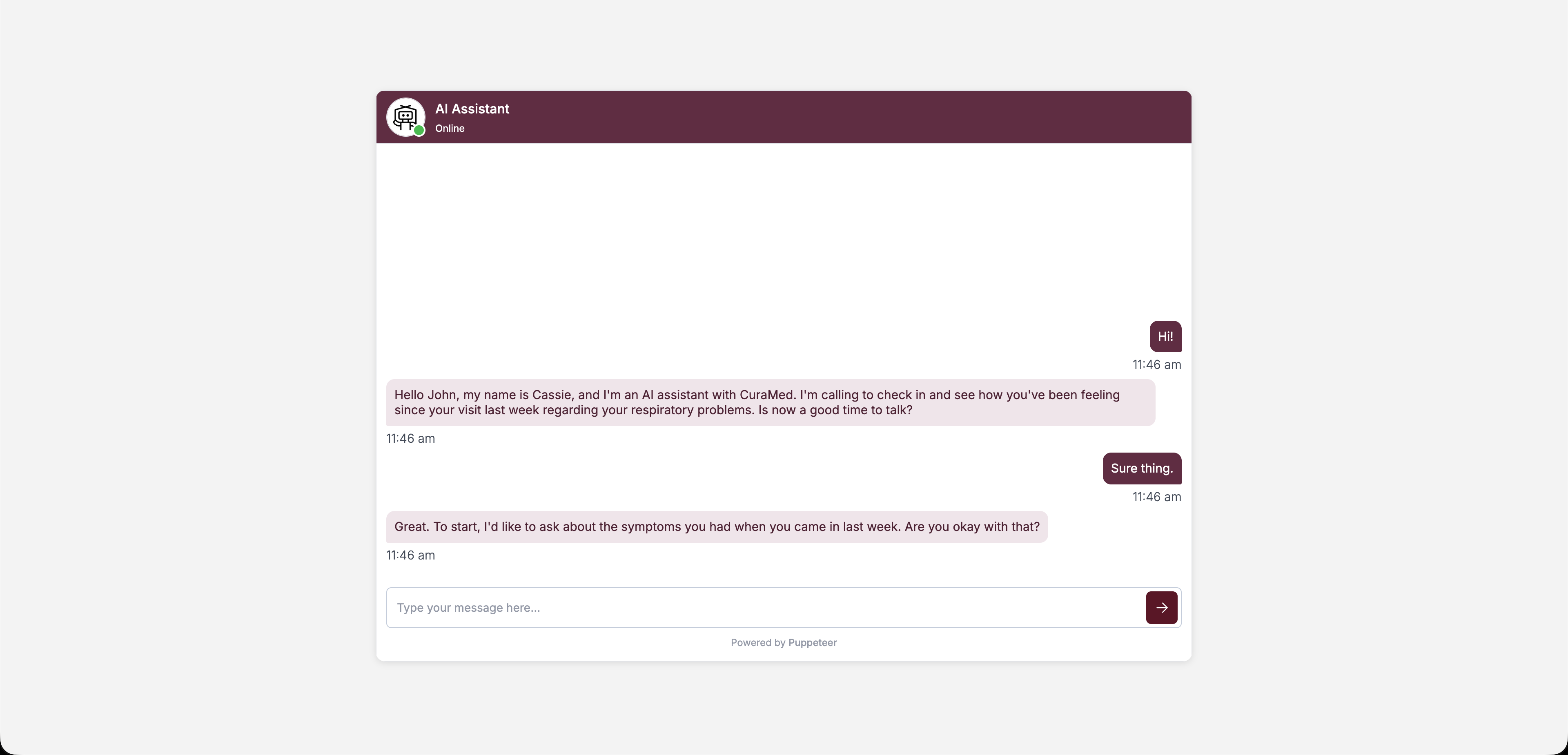
The chat embed lets you place the full Puppeteer chat experience directly inside your website. Unlike the [widget](/widget), which floats as a bubble, the embed fills a container you define — ideal for dedicating a section of a page to the agent.
Under the hood, both the embed and the widget use the same chat interface and support the same theming options. The difference is purely in presentation — the widget adds a collapsible bubble, while the embed renders inline.
 ## Basic setup
Add an iframe pointing to the `/widget` route:
```html theme={null}
```
## Theming
Pass color and branding options as URL parameters:
| Parameter | Description |
| --------------------- | -------------------------------------------------------- |
| `projectId` | Your project ID (required). |
| `accessToken` | Pre-generated access token for the thread. |
| `headerBgColor` | Header background color (hex-encoded, e.g. `%23712F4A`). |
| `headerTextColor` | Header text color. |
| `headerBotName` | Display name shown in the header. |
| `agentImage` | URL for the bot's avatar image. |
| `botBubbleBgColor` | Background color of bot message bubbles. |
| `botBubbleTextColor` | Text color of bot message bubbles. |
| `userBubbleBgColor` | Background color of user message bubbles. |
| `userBubbleTextColor` | Text color of user message bubbles. |
| `jsonInput` | JSON string with initial data for the thread. |
Hex color values must be URL-encoded — replace `#` with `%23`. For example, `#712F4A` becomes `%23712F4A`.
### Full example
```html theme={null}
```
## Opening a specific thread
By default, the embed creates a new thread. To open an existing thread, generate a JWT token for that thread and pass it as the `accessToken` parameter:
```html theme={null}
```
See [Authentication](/api-reference/authentication) for how to generate a JWT token scoped to a thread.
## Interaction modes
The embed supports three interaction modes depending on your project configuration:
* **Text** — Standard chat interface.
* **Web Call** — Browser-based voice call.
* **Phone Call** — Triggers a phone call to the user.
The available modes are determined by your project settings in the Puppeteer dashboard.
## Basic setup
Add an iframe pointing to the `/widget` route:
```html theme={null}
```
## Theming
Pass color and branding options as URL parameters:
| Parameter | Description |
| --------------------- | -------------------------------------------------------- |
| `projectId` | Your project ID (required). |
| `accessToken` | Pre-generated access token for the thread. |
| `headerBgColor` | Header background color (hex-encoded, e.g. `%23712F4A`). |
| `headerTextColor` | Header text color. |
| `headerBotName` | Display name shown in the header. |
| `agentImage` | URL for the bot's avatar image. |
| `botBubbleBgColor` | Background color of bot message bubbles. |
| `botBubbleTextColor` | Text color of bot message bubbles. |
| `userBubbleBgColor` | Background color of user message bubbles. |
| `userBubbleTextColor` | Text color of user message bubbles. |
| `jsonInput` | JSON string with initial data for the thread. |
Hex color values must be URL-encoded — replace `#` with `%23`. For example, `#712F4A` becomes `%23712F4A`.
### Full example
```html theme={null}
```
## Opening a specific thread
By default, the embed creates a new thread. To open an existing thread, generate a JWT token for that thread and pass it as the `accessToken` parameter:
```html theme={null}
```
See [Authentication](/api-reference/authentication) for how to generate a JWT token scoped to a thread.
## Interaction modes
The embed supports three interaction modes depending on your project configuration:
* **Text** — Standard chat interface.
* **Web Call** — Browser-based voice call.
* **Phone Call** — Triggers a phone call to the user.
The available modes are determined by your project settings in the Puppeteer dashboard.